Editorial note: this blog was updated in July 2024 to include the latest Snapdragon AI PC devices delivering Microsoft CoPilot+ PC experiences. Originally published in April 2022.
If you could design your dream Windows laptop or tablet, what features would be at the top of your list? Today, most users cite high performance, all-day/multi-day battery life, and persistent connectivity to the cloud from anywhere, as their top requirements.
This dream is now a reality thanks to our Snapdragon X Series compute platform powering AI PCs from Surface Pro, HP Elitebook Ultra, Dell Latitude 7455, Lenovo ThinkPad T14s and more. Snapdragon compute platforms include a modern SoC and breakthrough technologies that delivers the highest NPU performance per watt for Snapdragon X Elite laptops, with AI capabilities that deliver the performance and power efficiency needed for building next-gen AI experiences for your users.
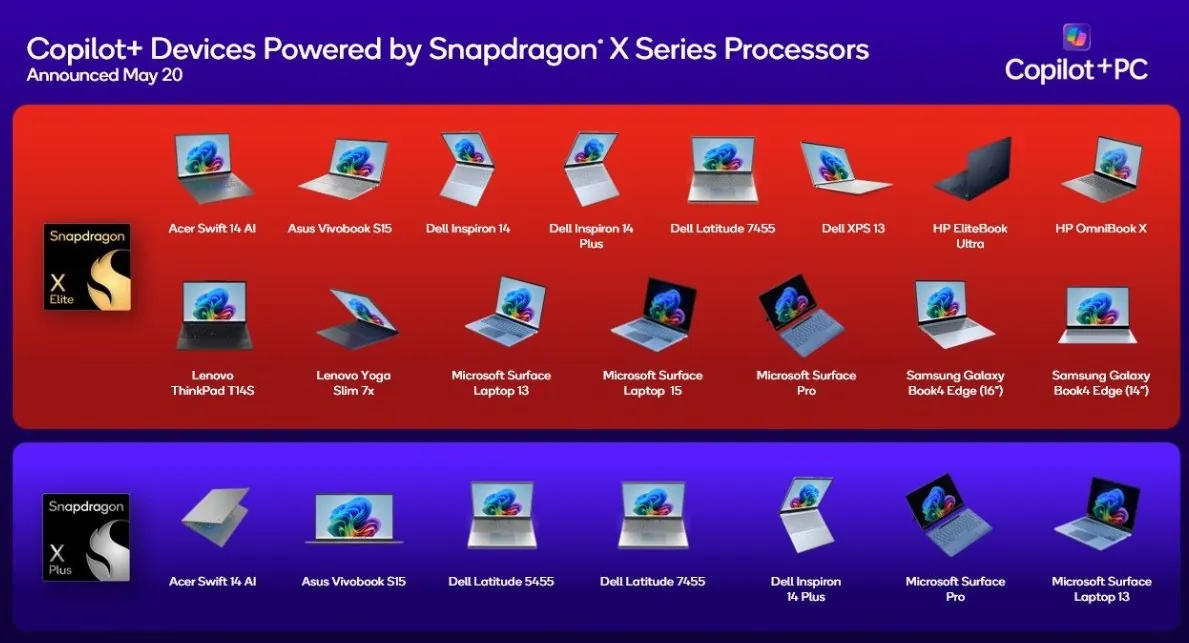
This blog covers how to easily optimize your application from x86 to run native, Arm-compatible applications powered by the Snapdragon X Series platform.
Emulation Options for Improved Porting Flexibility
Since Windows 10, you’ve been able to run x86 (32-bit) Windows applications via emulation and 64-bit Windows applications natively, allowing you to run existing 32-bit Windows apps without modification. To benefit from native performance or to run existing 64-bit Windows apps is simply a matter of recompiling them using the native 64-bit build target documentation.
Traditionally, porting an app has been all-or-nothing since all the binaries within a process (including third-party libraries and plugins) need to be rebuilt. However, with the Windows 11 application binary interface (API) target called ARM64EC (where EC stands for emulation compatible), it runs both emulated and native 64-bit code in the same process with near-native performance. Windows 11 supports x64 emulation, which enables your existing 64-bit Windows apps (e.g., C/C++, .NET, UWP, etc.) to run without modification, giving you flexibility over how to port your application incrementally to native 64-bit.
To find more information for an app developer to write and debug code compiled for 64-bit Windows applications, check out this detailed view of the ARM64EC ABI.
You can start with full emulation if desired and port parts of your code over time (e.g., you can focus on performance-critical code first and port other code later). Best of all, dependencies like third-party libraries and plugins can now remain as x64 since you can run them via emulation. This is a huge win when porting since you no longer have to depend on third parties to rebuild dependencies as native x64. See this blog from Microsoft for additional information about building native Arm-compatible apps on Windows.
What You’ll Need for Developing for Windows on Snapdragon
To take advantage of these benefits, you’ll first need a Windows 11 device powered by Snapdragon on which to run and debug your apps. This can be a separate machine you connect to for remote deployment and debugging (discussed more below). You can use any device powered by Snapdragon compute platforms or use the Snapdragon Developer Kit for Windows (shown below). This kit provides a cost-effective solution in a compact form factor which is great for Windows on Snapdragon development. It’s powered by the Snapdragon X Elite Compute Platform, supporting Windows 11, and includes several connectivity options.

You’ll also need Visual Studio 2022, which supports 64-bit native applications. During installation, be sure to select arm64ec > MSVC v143 – VS 2022 C++ ARM64EC Build Tools to install the necessary compiler. If you don’t have access to the full version of Visual Studio 2022 and just want to port or develop 64-bit native applications for Windows, you can download Visual Studio Code.
On the configuration side, turn on Developer Mode in Windows 11’s settings. This allows you to install and run unsigned apps (e.g., UWP apps) from outside of Windows Store.
Then, create a Visual Studio project and add a configuration for the ARM64 or ARM64EC build target as described in this blog post from Microsoft.
Porting Considerations
When porting existing code to Windows on Snapdragon, pay attention to the following:
- Assembly Code: Identify all assembly code (e.g., assembly code embedded within C/C++ code). Since it’s likely written for an x86/x64 instruction set, you’ll need to rewrite it using the x64 instruction set.
- Processor-specific code: Similarly, identify and replace code that looks for specific x86/x64 registers.
- Architecture assumptions: Look for conditions that alter program flow based on x86 and x64 targets. This includes both compile-time (e.g., #ifdefs) and runtime conditions (e.g., if/else statements). You may need to add an additional branch for Windows on Snapdragon or replace the conditions with cross-platform code.
- Intrinsics: Review intrinsics to ensure that a) the compiler supports them and b) they perform as expected by your new build target.
- Out-of-date dependencies: Even though ARM64EC can run non-native 64-bit dependencies, you should be on the lookout for legacy and out-of-date dependencies, as they can still present potential security risks and may be worth replacing.
Remote Debugging
In addition to local debugging, you can also remotely debug Windows on Snapdragon devices – both from Windows on Snapdragon devices and other Windows devices (e.g., x64 devices). To enable remote debugging, make sure you have Remote Tools for Visual Studio 2022 for ARM64.
You’ll also need to enable Device Discovery for Remote Debugging in Windows settings. In conjunction with Developer Mode (mentioned earlier), this allows you to pair up your development machine with a remote target machine.
Make sure Device Portal is enabled in Window settings. This provides a device administration page to administer the device remotely.
Since Windows 11 and Snapdragon supports Hyper-V, you can also run Windows 11 in virtual machines on your Windows on Snapdragon device to perform local or remote testing/debugging. Spinning up these VMs can be useful for kernel load and kernel driver development, as well as testing deployments and installations with different environmental settings.
Don't forget to take advantage of the growing toolset - use WinDBG as well as KDNET to perform kernel debugging. And there are now almost 50 apps in Sysinternals available here.
Windows Terminal is also worth checking out. It can run different consoles like PowerShell in the same window and supports the Windows subsystem for Linux (WSL). WSL allows you to use Linux development tools – both command-line and graphical – to further augment your Windows on Snapdragon development toolset.
In addition, Microsoft and Qualcomm are members of Linaro’s Windows on Arm Project, to help advance the developer suite. You can find information about specific tools like LLVM, Python, etc., on Linaro’s project page.
There’s never been a better time or easier way to port your applications to Windows on Snapdragon. Not only is the process easy, but your apps will be running on an always-on-always-connected device designed to give your users their next-level Windows experience.
Additional Blogs and Resources
For more details about developing for Windows on Snapdragon, check out the following resources:
Snapdragon is a product of Qualcomm Technologies, Inc. and/or its subsidiaries.